
 MENÜ
MENÜ
 Contact
Smart Insert
You know the problem: You're typing text into a Polarion field, where you want to insert information that you first have to search for, find, and copy from somewhere else in your Polarion project before you can paste it, or you want to insert information that absolutely must be spelled and formatted correctly. For example, a cross reference to a Work Item or the current date and your user ID (time & author stamp). Whether you type with ten fingers or just four, it takes time that you usually don't have.
Our UPPS! Polarion Extension Smart Insert provides a solution: you don't need to leave the input context you are currently working in, but can search directly where the cursor is. You are familiar with this from writing emails in Outlook, for example: there, you type the @ symbol followed by a name or the beginning of a name and immediately receive a drop-down list of email addresses that contain the name or the beginning of the name; the more you complete the beginning of the name, the shorter the selection list becomes. However, instead of continuing to type, you can simply click on an item in the drop-down list to insert the complete email address of your choice.


Let's take a closer look at the examples mentioned.
Example 1: Search for, find, copy, and insert a work item as a cross-reference
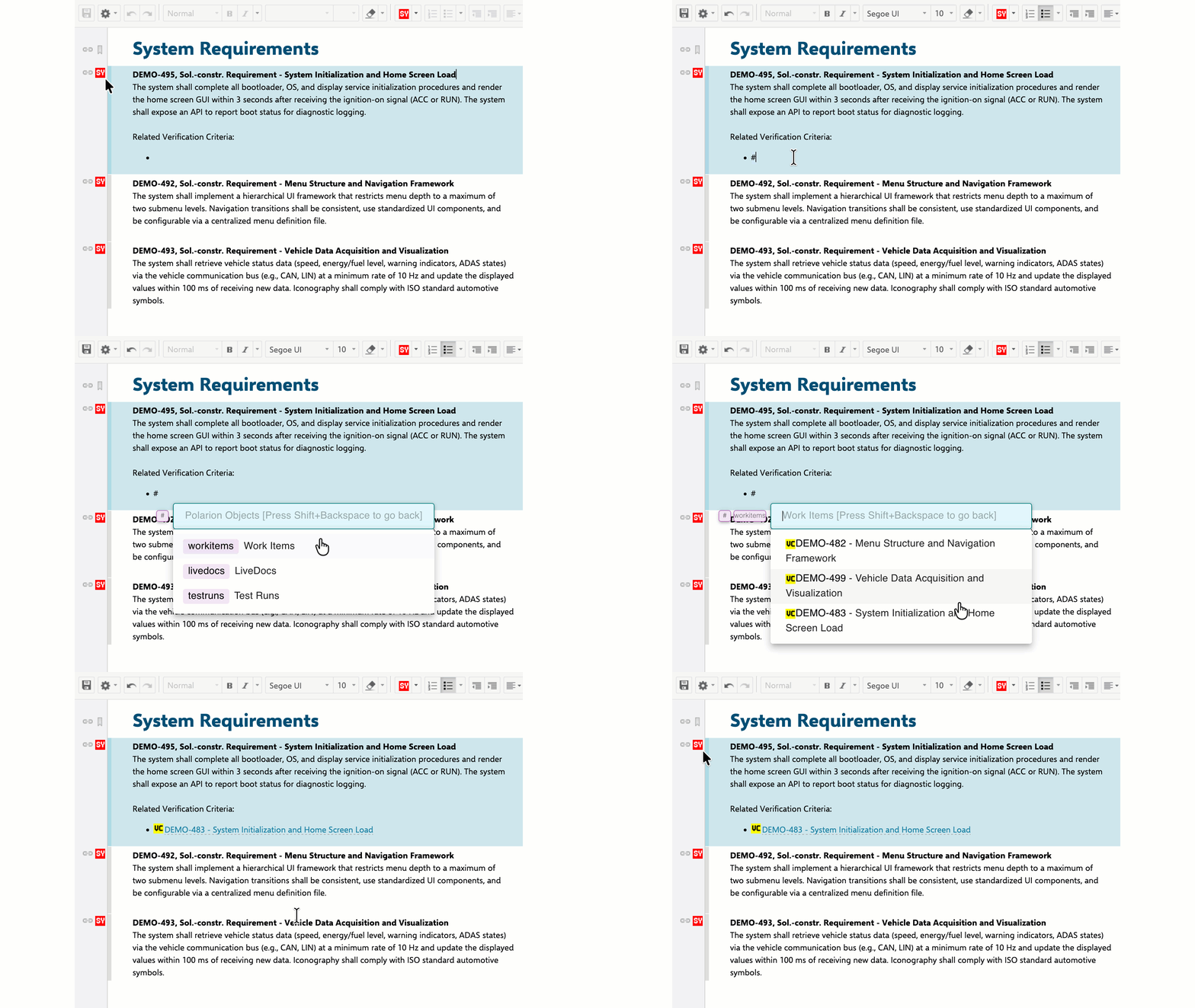
Imagine, you are working in a Live Document which represents the system requirements specification for a mechatronic product under development—specifically, an infotainment system for a vehicle. In this document, under the heading Functional Requirements, you use the Work Item type SY (System Requirement) to describe the functional system requirements of the infotainment system. Elsewhere in the same Live Document, under the heading Verification Criteria, you have used the Work Item type VC (Verification Criterion) to specify the verification criteria to be applied when testing the functional system requirements. To comply with the relevant standards, you want to list the associated verification criteria as cross-references in the Description field of each functional system requirement. With the help of Smart Insert, this is, so to speak, a snap:
Example 2: Insert the current date and your name into a Polarion field according to a specific format.
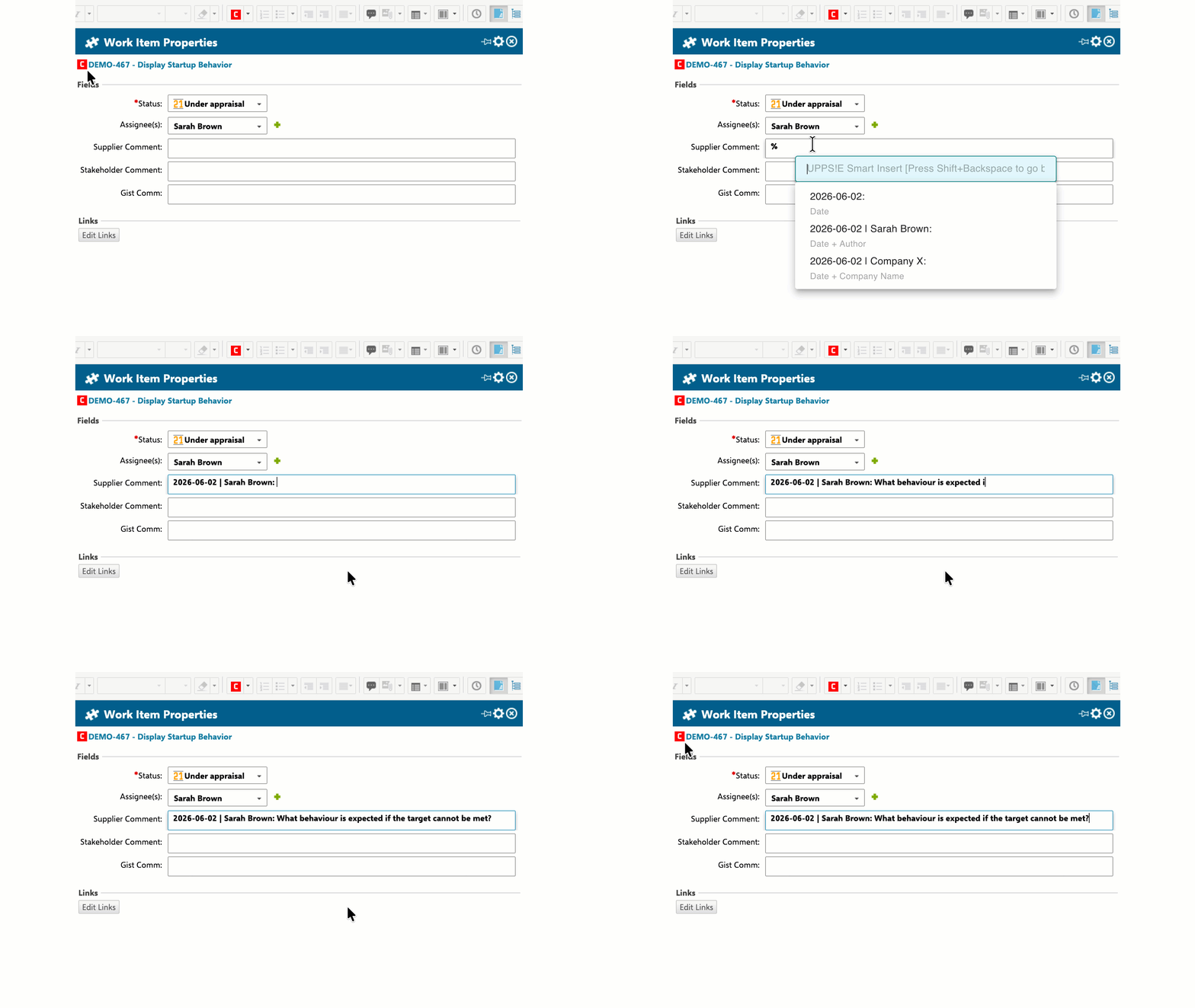
Imagine you are working in a Live Document which represents the imported customer requirements specification for a mechatronic product that your company is to develop and deliver, namely a radio key for a vehicle. In this document, the customer requirements are Work Items of type C, Customer Requirement. To ensure that any questions that arise can be clarified with the customer via roundtrip, each work item has a custom field called Supplier Comment. It is stipulated that any person who encounters ambiguities when assessing the customer requirements must use this field to address his questions to the customer, first entering the current date and his name in a specific format and then his question(s) to the customer. Compliance with the formatting rule will slow you down and possibly annoy you. With the support of Smart Insert, it's a snap, so to say:
Example 3: Enter the names of users correctly and in full into a Polarion field
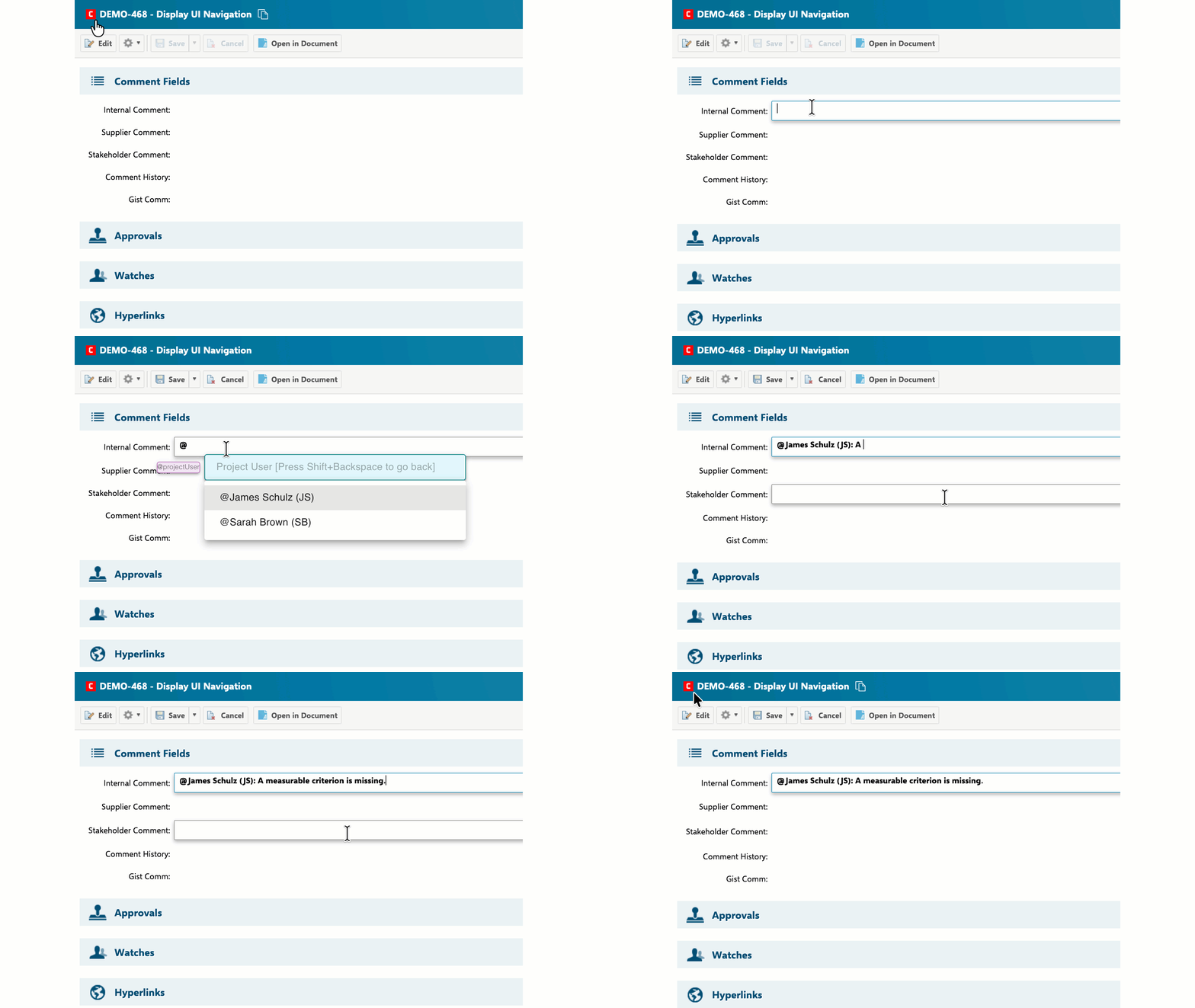
Imagine you are editing a Work Item in the Work Item form layout and want to mention the names of some colleagues in the comment field. Of course, you don't have the correct spelling of their first and last names in your head, and you may not even know all of their first and/or last names. With the support of Smart Insert, all it takes is a few simple clicks:
Example 4: Insert text template into the Work Item description
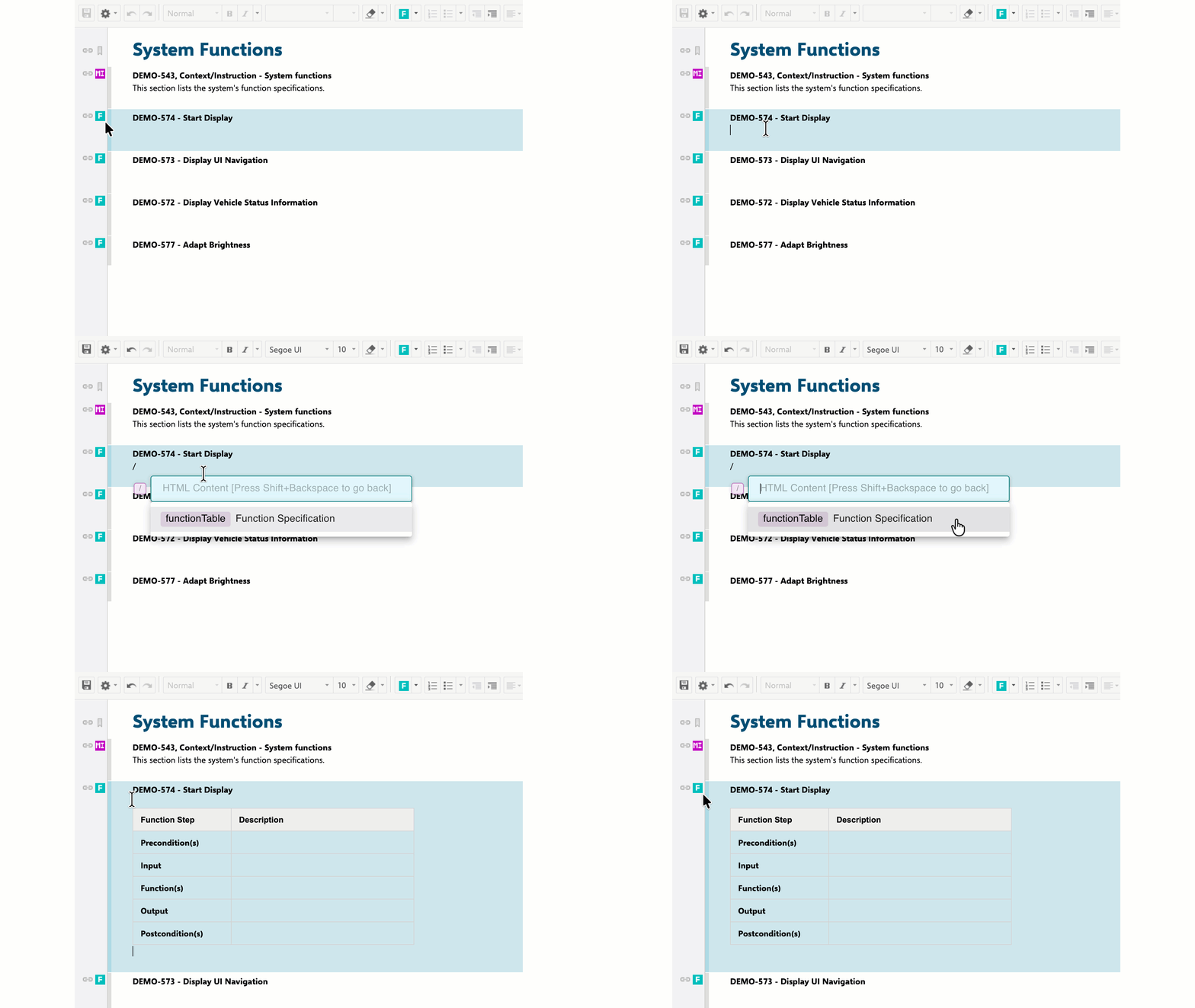
Suppose you are editing a Work Item in the Work Item form layout or the Live Document editor, and you want to insert a text template into the description field. This can be helpful, for example, to insert a table into a requirement Work Item where parameter values are to be entered, or to insert a table into a function Work Item that defines the framework for a workflow to be described. With the help of Smart Insert, all it takes is a few clicks:
Smart Insert Key Features
Automatically available at any typing position within any Polarion Work Item field of type String, Text, or Rich Text in the Live Document editor and Work Item editor.
The scope of delivery includes tried-and-tested default settings. With Polarion administration permissions, these can be changed, deleted, and supplemented as desired. For example, the search algorithm can be restricted to the current Live Document or project, or the key symbols such as @, #, etc. can be replaced by others.

Available insertion options are:
User mentions
(@ followed by name or part of name opens drop-down list)
- Date/author stamps
(% opens drop-down list of different formats)
- Object insertions
(# opens drop-down list for Work Items, Live Documents, Test Runs)
- Configured insertions based on user-provided scripts
(/ opens a drop-down list)